What information should I enter in the Sol Systems portal?
Once site access has been provided, please ensure that when registering the system in the Sol Systems portal you:
-
Select “Tesla” as the Remote Monitoring (RM) platform
-
Enter the site name or site ID for accurate system tracking
Installer registration (one-time setup)
Step 1: Open Installer Registration
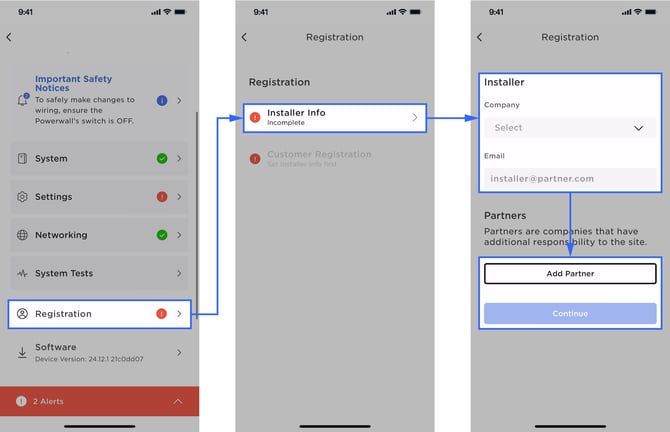
In Powerhub, navigate to:
Registration → Installer Info
Enter your contact information.
Step 2: Confirm company information
-
Verify that the Company Name field is automatically populated with the installing company
-
If the company name is missing or incorrect, search for and select the correct company
Step 3: Confirm installer email
-
Leave the installer’s email address in the Email field
-
This email is used by Tesla to track Tesla Academy training completion and Pro Score in Tesla One
Step 4: Add partner installer companies (if applicable)
If additional partner companies are involved:
-
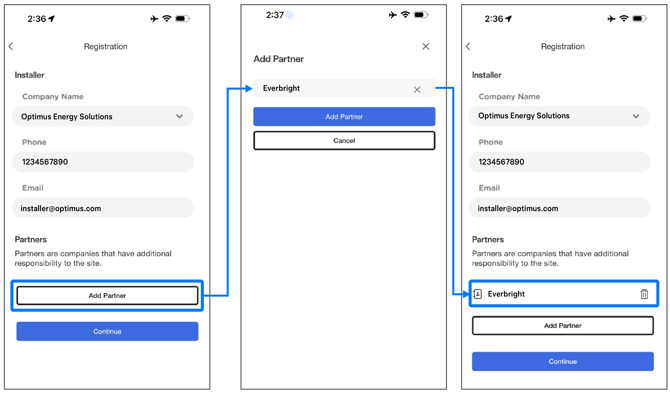
Select Add Partner
-
Search for and select the partner company
-
Repeat as needed (up to two partner companies can be added)
Select Continue to proceed to customer registration.
How do I share a site with Sol Systems?
Step 1: Navigate to the site
Open the applicable site in Powerhub.
Step 2: Share site access
-
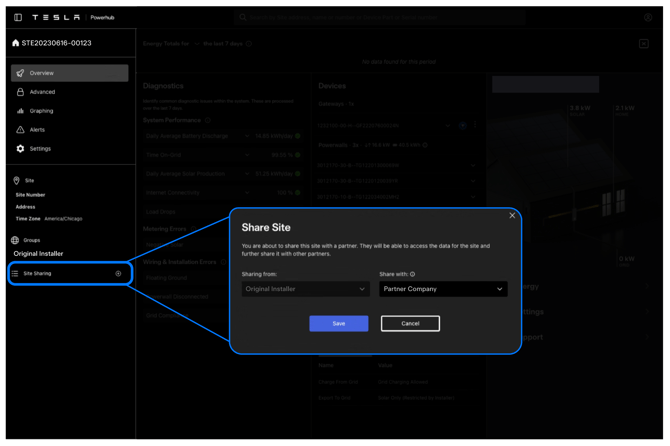
From the left-hand menu, select the “+” icon next to Site Sharing
-
Search for and select the partner company (Sol Systems)
-
Select Save
Step 3: Confirm access
Once access is shared:
-
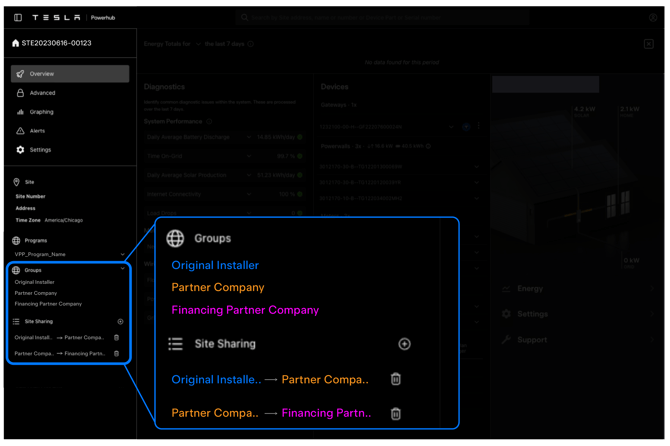
Each partner company will appear under Groups
-
Each partner company will also appear under Site Sharing, along with the company that granted access
For example:
-
The Original Installer shares the site with a Partner Company
-
The Partner Company shares the site with a Financing Partner Company
-
All three companies appear under Groups