---
title: How to set up Generac Power Fleet (PWRfleet) for automatic SREC reporting?
description: To enable automatic SREC reporting, Sol Systems needs viewer access to your site in the Generac Power Fleet (PWRfleet) monitoring portal.
---
[Skip to content](https://help.srecs.solsystems.com/how-to-set-up-generac-power-fleet-pwrfleet-for-automatic-srec-reporting#main-content)
English - United States
Show submenu for translations

Open main navigation
Close main navigation
- English - United States
Show submenu for translations
- [Contact us](mailto:info@solsystems.com)
[Contact us](mailto:info@solsystems.com)
How can we help you?
- There are no suggestions because the search field is empty.
1. [Sol Systems Knowledge Base](https://help.srecs.solsystems.com/?hsLang=en-us)
2. [Remote Monitoring](https://help.srecs.solsystems.com/remote-monitoring?hsLang=en-us)
# How to set up Generac Power Fleet (PWRfleet) for automatic SREC reporting?
## To enable automatic SREC reporting, Sol Systems needs viewer access to your site in the Generac Power Fleet (PWRfleet) monitoring portal.
#### **What access does Sol Systems need?**
Sol Systems requires **site-level access** in PWRfleet in order to retrieve monthly energy production data.
Please provide access to **info@solsystems.com**.
### **Step-by-step: How to provide PWRfleet access to Sol Systems**
#### **Step 1: Log in to PWRfleet**
Log in to the **PWRfleet monitoring portal** as an **Administrative User**.
#### **Step 2: Establish a company association (one-time step)**
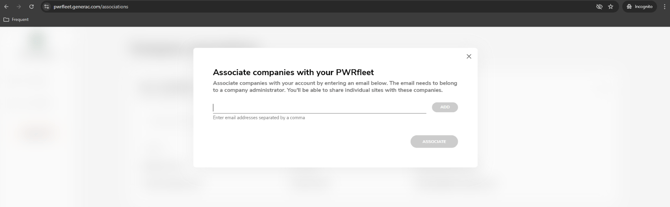
Before sharing a site, you must create a **company association** between your account and Sol Systems. This is a **one-time step** and makes it easier to share additional sites in the future.
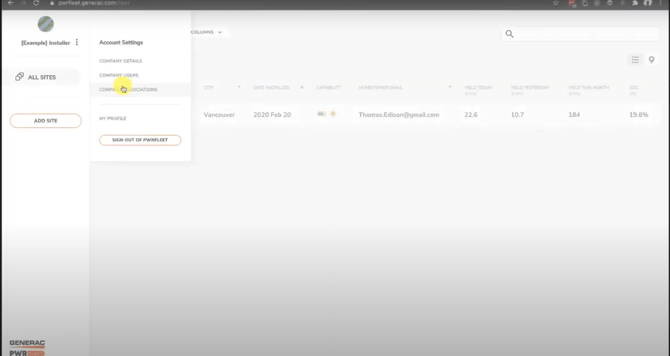
1. Click the **Settings** icon in the upper-left corner of the application
2. Select **Company Association**
3. Under *“Your financing and O&M partners”*, click **Request Association**
Enter **info@solsystems.com** and click **Associate**
****
****
#### **Step 3: Notify Sol Systems**
After submitting the association request, email **info@solsystems.com** to let us know.
Sol Systems must accept the request before you can share a site.
#### **Step 4: Share your site with Sol Systems**
Once the association has been accepted:
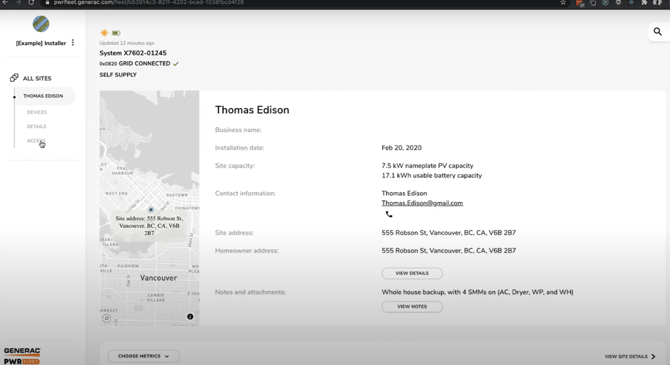
1. Go to your **PWRfleet home page**
2. Select the site you want to share
3. Click **Access**
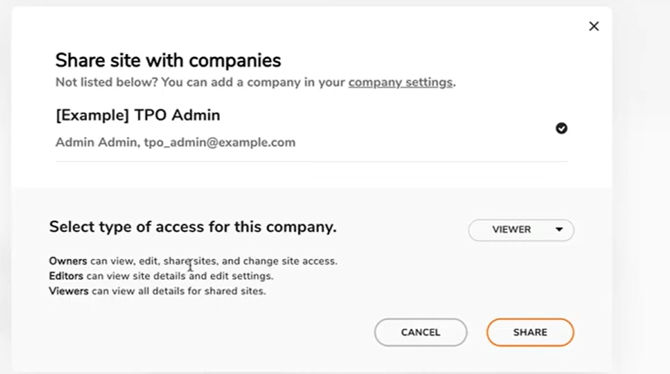
4. Choose **Share site**
5. Select **Sol Systems** from the list of companies
Please grant **at least “Viewer” access**, which is the minimum level required for Sol Systems to view monthly production readings.
#### **How do I tell Sol Systems which site to use?**
To help us locate your production data, please provide your **PWRfleet site name**.
You can do this by:
- Entering your PWRfleet site name as your **External System Name** in the **Sol Dashboard**, or
- Emailing your PWRfleet site name directly to **info@solsystems.com** if you do not see the prompt in the Dashboard
- [FAQs](https://help.srecs.solsystems.com/faqs?hsLang=en-us)
- [Signing Up: Everything You Need to Know](https://help.srecs.solsystems.com/signing-up-everything-you-need-to-know?hsLang=en-us)
- [Contract Offerings](https://help.srecs.solsystems.com/contract-offerings?hsLang=en-us)
- [State Markets](https://help.srecs.solsystems.com/state-markets?hsLang=en-us#main-content)
- [Washington, DC](https://help.srecs.solsystems.com/state-markets?hsLang=en-us#washington-dc)
- [Maryland](https://help.srecs.solsystems.com/state-markets?hsLang=en-us#maryland)
- [Pennsylvania](https://help.srecs.solsystems.com/state-markets?hsLang=en-us#pennsylvania)
- [Virginia](https://help.srecs.solsystems.com/state-markets?hsLang=en-us#virginia)
- [New Jersey](https://help.srecs.solsystems.com/state-markets?hsLang=en-us#new-jersey)
- [Massachusetts](https://help.srecs.solsystems.com/state-markets?hsLang=en-us#massachusetts)
- [Ohio](https://help.srecs.solsystems.com/state-markets?hsLang=en-us#ohio)
- [Delaware](https://help.srecs.solsystems.com/state-markets?hsLang=en-us#delaware)
- [Payments](https://help.srecs.solsystems.com/payments?hsLang=en-us)
- [SREC Basics](https://help.srecs.solsystems.com/srec-basics?hsLang=en-us)
- [Meter Readings](https://help.srecs.solsystems.com/meter-readings?hsLang=en-us)
- [Remote Monitoring](https://help.srecs.solsystems.com/remote-monitoring?hsLang=en-us)
- [Change of Ownership & System Expansions](https://help.srecs.solsystems.com/change-of-ownership-system-expansions?hsLang=en-us)
[](https://www.solsystems.com/)
[mailto:email@email.com](mailto:email@email.com)
Copyright © 2026, Sol Systems