---
title: How to setup Tesla for automatic SREC Reporting?
description: To enable automatic SREC reporting for Tesla systems, Sol Systems requires site access through Tesla’s monitoring portal, Powerhub. The installer only needs to complete installer registration once. After that, access can be shared for each individual site as needed.
---
[Skip to content](https://help.srecs.solsystems.com/how-to-set-up-tesla-for-automatic-srec-reporting#main-content)
English - United States
Show submenu for translations
Open main navigation
Close main navigation
- English - United States
Show submenu for translations
- [Contact us](mailto:info@solsystems.com)
[Contact us](mailto:info@solsystems.com)
How can we help you?
- There are no suggestions because the search field is empty.
1. [Sol Systems Knowledge Base](https://help.srecs.solsystems.com/?hsLang=en-us)
2. [Remote Monitoring](https://help.srecs.solsystems.com/remote-monitoring?hsLang=en-us)
# How to setup Tesla for automatic SREC Reporting?
## To enable automatic SREC reporting for Tesla systems, Sol Systems requires site access through Tesla’s monitoring portal, Powerhub. The installer only needs to complete installer registration once. After that, access can be shared for each individual site as needed.
#### **What information should I enter in the Sol Systems portal?**
Once site access has been provided, please ensure that when registering the system in the Sol Systems portal you:
- Select **“Tesla”** as the **Remote Monitoring (RM) platform**
- Enter the **site name or site ID** for accurate system tracking
### **Installer registration (one-time setup)**
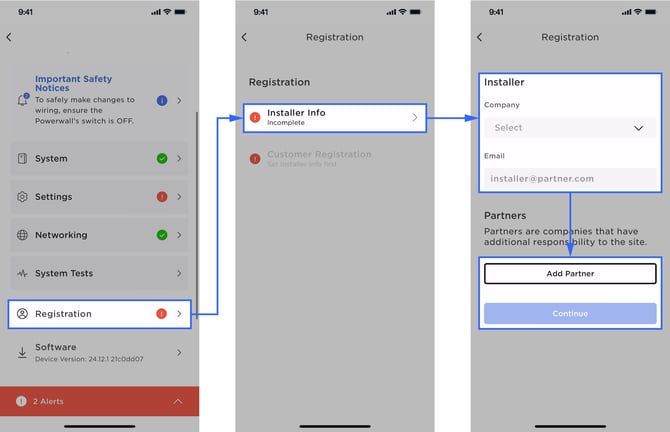
#### **Step 1: Open Installer Registration**
In Powerhub, navigate to:
**Registration → Installer Info**
Enter your contact information.
#### **Step 2: Confirm company information**
- Verify that the **Company Name** field is automatically populated with the installing company
- If the company name is missing or incorrect, search for and select the correct company
#### **Step 3: Confirm installer email**
- Leave the installer’s email address in the **Email** field
- This email is used by Tesla to track **Tesla Academy training completion** and **Pro Score** in Tesla One
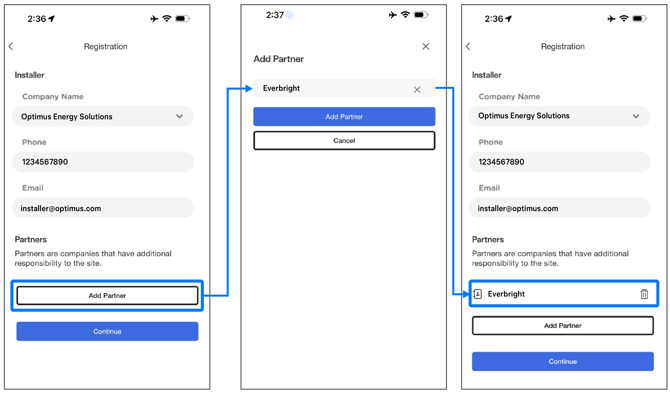
#### **Step 4: Add partner installer companies (if applicable)**
If additional partner companies are involved:
1. Select **Add Partner**
2. Search for and select the partner company
3. Repeat as needed (up to **two partner companies** can be added)
Select **Continue** to proceed to customer registration.
### **How do I share a site with Sol Systems?**
#### **Step 1: Navigate to the site**
Open the applicable site in **Powerhub**.
#### **Step 2: Share site access**
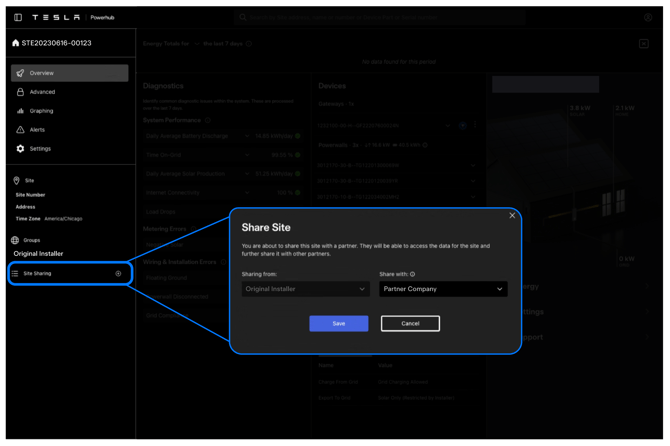
1. From the left-hand menu, select the **“+”** icon next to **Site Sharing**
2. Search for and select the partner company (Sol Systems)
3. Select **Save**
#### **Step 3: Confirm access**
Once access is shared:
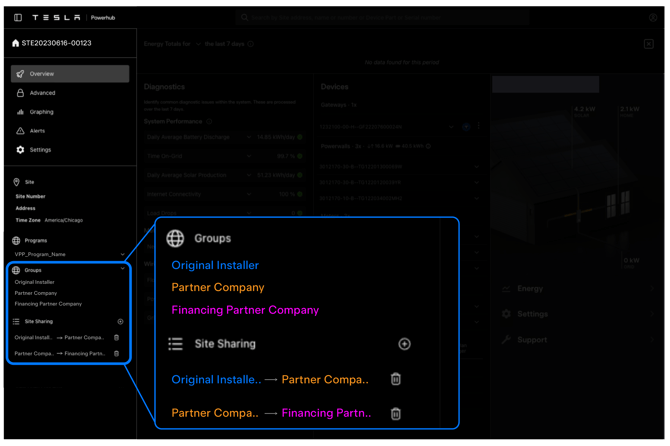
- Each partner company will appear under **Groups**
- Each partner company will also appear under **Site Sharing**, along with the company that granted access
For example:
- The **Original Installer** shares the site with a **Partner Company**
- The **Partner Company** shares the site with a **Financing Partner Company**
- All three companies appear under **Groups**
- [FAQs](https://help.srecs.solsystems.com/faqs?hsLang=en-us)
- [Signing Up: Everything You Need to Know](https://help.srecs.solsystems.com/signing-up-everything-you-need-to-know?hsLang=en-us)
- [Contract Offerings](https://help.srecs.solsystems.com/contract-offerings?hsLang=en-us)
- [State Markets](https://help.srecs.solsystems.com/state-markets?hsLang=en-us#main-content)
- [Washington, DC](https://help.srecs.solsystems.com/state-markets?hsLang=en-us#washington-dc)
- [Maryland](https://help.srecs.solsystems.com/state-markets?hsLang=en-us#maryland)
- [Pennsylvania](https://help.srecs.solsystems.com/state-markets?hsLang=en-us#pennsylvania)
- [Virginia](https://help.srecs.solsystems.com/state-markets?hsLang=en-us#virginia)
- [New Jersey](https://help.srecs.solsystems.com/state-markets?hsLang=en-us#new-jersey)
- [Massachusetts](https://help.srecs.solsystems.com/state-markets?hsLang=en-us#massachusetts)
- [Ohio](https://help.srecs.solsystems.com/state-markets?hsLang=en-us#ohio)
- [Delaware](https://help.srecs.solsystems.com/state-markets?hsLang=en-us#delaware)
- [Payments](https://help.srecs.solsystems.com/payments?hsLang=en-us)
- [SREC Basics](https://help.srecs.solsystems.com/srec-basics?hsLang=en-us)
- [Meter Readings](https://help.srecs.solsystems.com/meter-readings?hsLang=en-us)
- [Remote Monitoring](https://help.srecs.solsystems.com/remote-monitoring?hsLang=en-us)
- [Change of Ownership & System Expansions](https://help.srecs.solsystems.com/change-of-ownership-system-expansions?hsLang=en-us)
[](https://www.solsystems.com/)
[mailto:email@email.com](mailto:email@email.com)
Copyright © 2026, Sol Systems